These Terms of Use ("Terms") govern your use of the Sosin application ("the App") operated by PEOPS OÜ ("we," "us," or "our"), a company registered in Estonia. By using the App, you agree to these Terms.
Last updated: March 2026
Eligibility
You must be at least 16 years old to use Sosin. By using the app, you confirm that you meet this age requirement.
License
Sosin is licensed, not sold. Your license key grants you the right to use Sosin on one device (or multiple devices based on your plan).
Restrictions
You may not redistribute, reverse engineer, or resell Sosin or its license keys.
Intellectual property
Sosin, including its code, design, icons, and brand, is the intellectual property of PEOPS OÜ. All transcription output generated by Sosin belongs to you — we do not claim any rights to your content.
AI Output Disclaimer
Sosin uses third-party AI services and on-device models to transcribe and process speech. AI analysis may contain errors. Transcription results are provided "as is" without any guarantee of accuracy, completeness, or suitability for any purpose. We are not liable for errors, omissions, or misinterpretations in the transcribed text. Always review important content before sending or publishing.
Data Processing
With Local Models, all audio is processed on your device and never leaves your Mac. With AI Models, audio is sent to third-party AI providers for processing and is not stored after transcription. Your audio is never linked to your identity. We do not use your audio or transcriptions for training AI models.
Anonymous error reporting
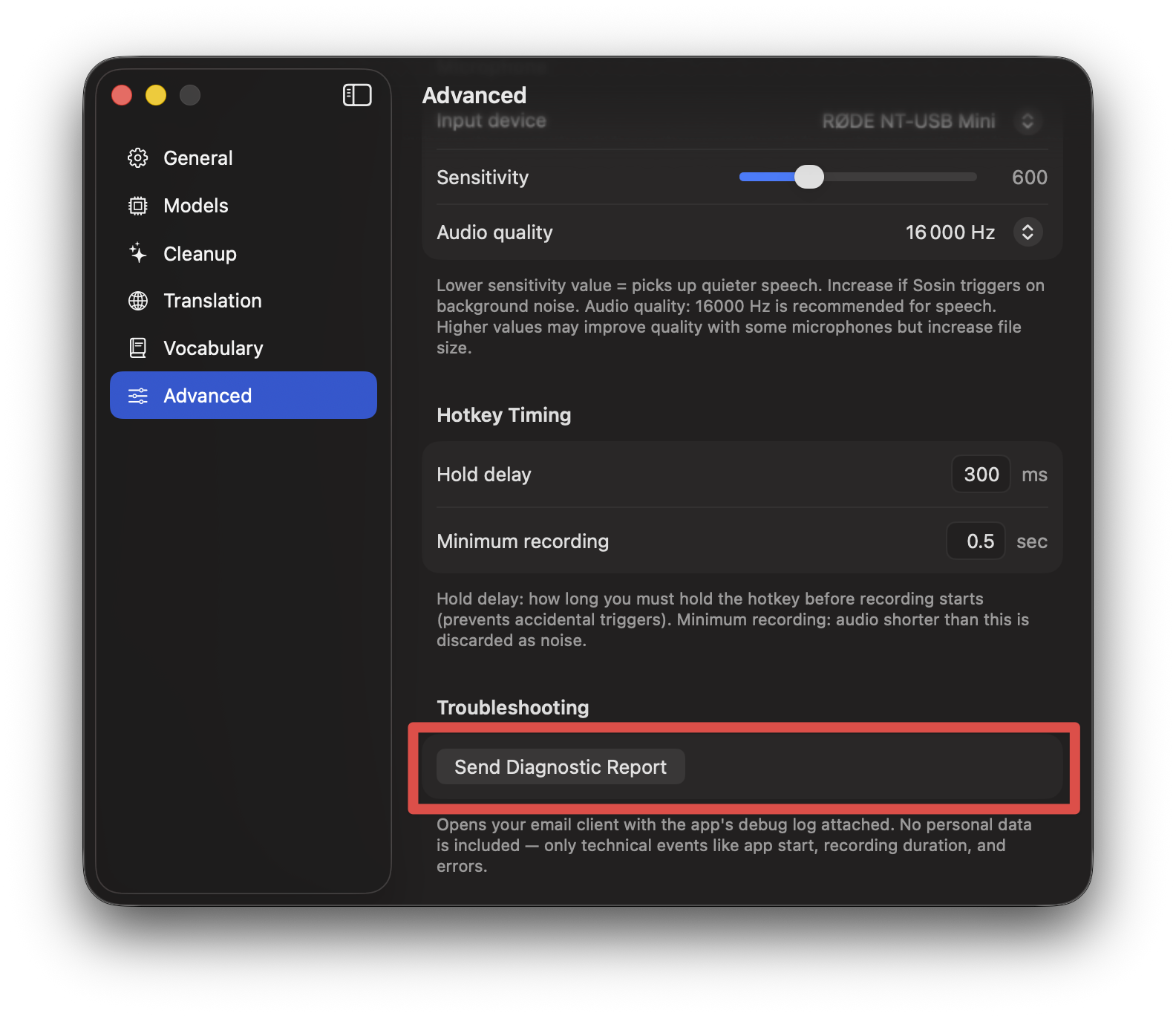
If you opt in, Sosin sends anonymous error reports when something goes wrong. Reports include: app version, macOS version, error type, and recording duration. Reports do NOT include: dictation text, email, license key, device identity, or any personal data. The device identifier is a one-way hash that cannot be traced back to you. You can enable or disable this at any time in Settings. Error reports are automatically deleted after 30 days.
User content
You are solely responsible for the content you dictate and transcribe using Sosin. We do not monitor, review, or store your dictations. We are not liable for any content created through the use of our app.
Subscriptions & Payments
Monthly subscriptions (Basic, Starter, Plus) renew automatically. You can cancel anytime — access continues until the end of your billing period. BYO Key is a one-time purchase with no recurring fees. All payments are processed by Paddle as Merchant of Record. Your payment relationship is with Paddle, not PEOPS OÜ. Plans with unlimited AI usage are subject to a fair use policy — Sosin is designed for personal dictation, not automated or bulk processing. We reserve the right to contact users with abnormally high usage patterns to discuss their needs.
Refunds & Right of Withdrawal
A 7-day free trial is available with no payment required. For paid plans, you have a 14-day right of withdrawal from the date of your first paid transaction, in accordance with EU consumer protection law. Refund requests are processed by Paddle.
Bring Your Own Key (BYO Key)
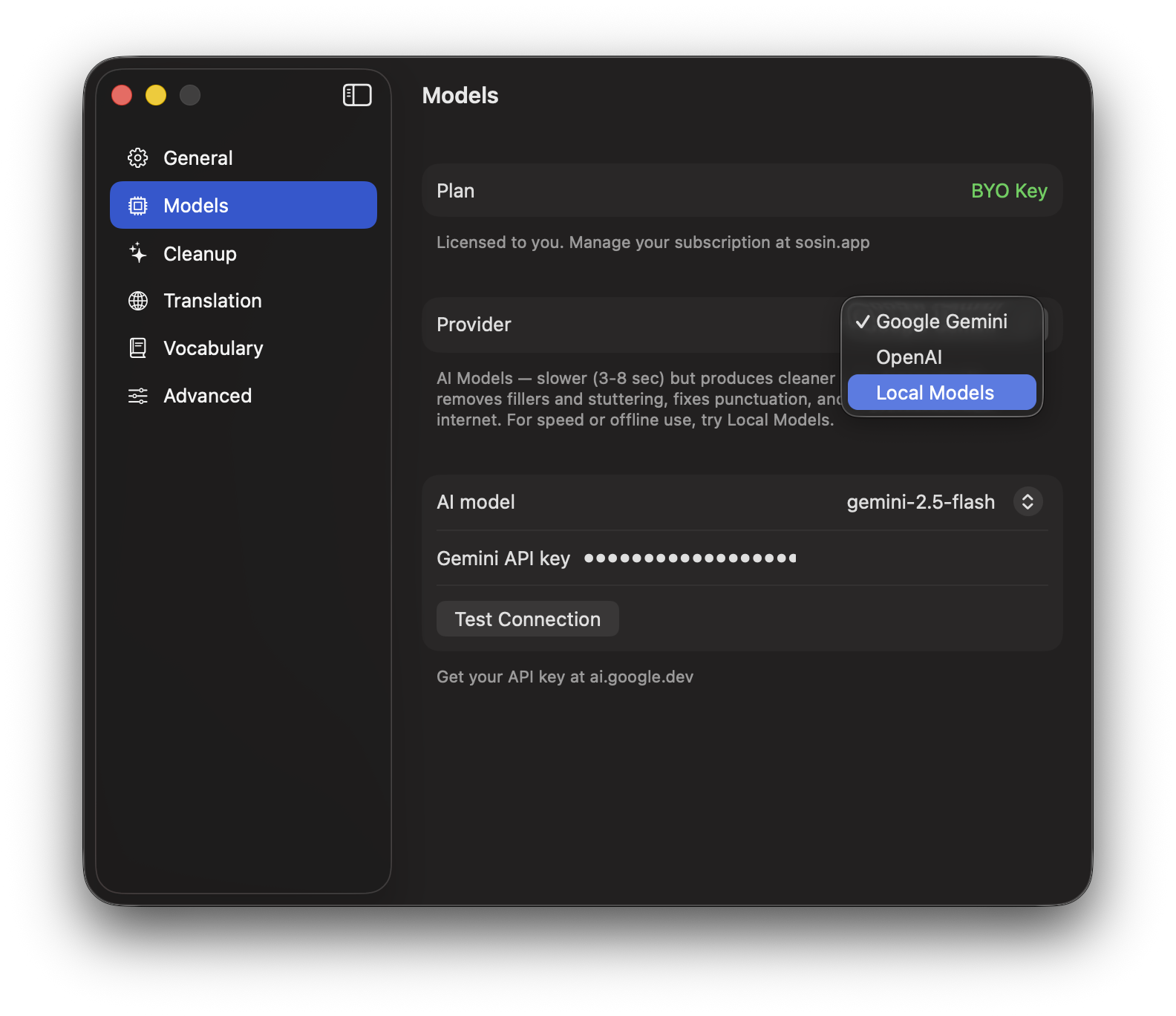
With the BYO Key plan, you provide your own API keys for Google Gemini and/or OpenAI. You have a direct relationship with these providers and are responsible for any charges on your API accounts. Sosin stores your API key locally on your device only — it is never sent to our servers. We are not responsible for the availability, accuracy, or performance of third-party API services.
Limitation of Liability
To the maximum extent permitted by law, PEOPS OÜ is not liable for any indirect, incidental, special, consequential, or punitive damages. Our total liability is limited to the amount you have paid for Sosin in the 12 months preceding the claim.
Indemnification
To the extent permitted by applicable law, you agree to defend and hold harmless PEOPS OÜ from any claims, damages, or expenses arising from your use of Sosin, your violation of these Terms, or your violation of any third-party rights.
Disclaimer of Warranties
Sosin is provided "as is" and "as available" without warranties of any kind, whether express or implied, including but not limited to implied warranties of merchantability, fitness for a particular purpose, or non-infringement. We do not warrant that the App will be uninterrupted, error-free, or free from harmful components.
Availability
We aim for continuous availability but do not guarantee uptime. Local Models and Gemma 4 work without internet. Cloud AI features require internet and depend on third-party provider availability.
Termination
Either party may terminate this agreement at any time. You can stop using Sosin and cancel your subscription through Paddle. We may terminate or suspend your access if you violate these Terms. Upon termination: your subscription ends at the current billing period, your local data (history, settings) remains on your Mac, and any cloud-side usage data is deleted. BYO Key licenses remain valid after termination unless terminated for violation of these Terms.
Changes
We may update these terms with reasonable notice. Continued use of Sosin after changes constitutes acceptance. Material changes will be communicated via the app or email.
Governing law
These Terms are governed by the laws of the Republic of Estonia. Any disputes shall be resolved in the courts of Estonia. If you are an EU consumer, you retain any mandatory consumer protection rights under the laws of your country of residence.
Entire agreement
These Terms, together with the Privacy Policy, constitute the entire agreement between you and PEOPS OÜ regarding the use of Sosin.
Severability
If any provision of these Terms is found to be invalid or unenforceable, the remaining provisions shall continue in full force and effect.
Contact
[email protected]
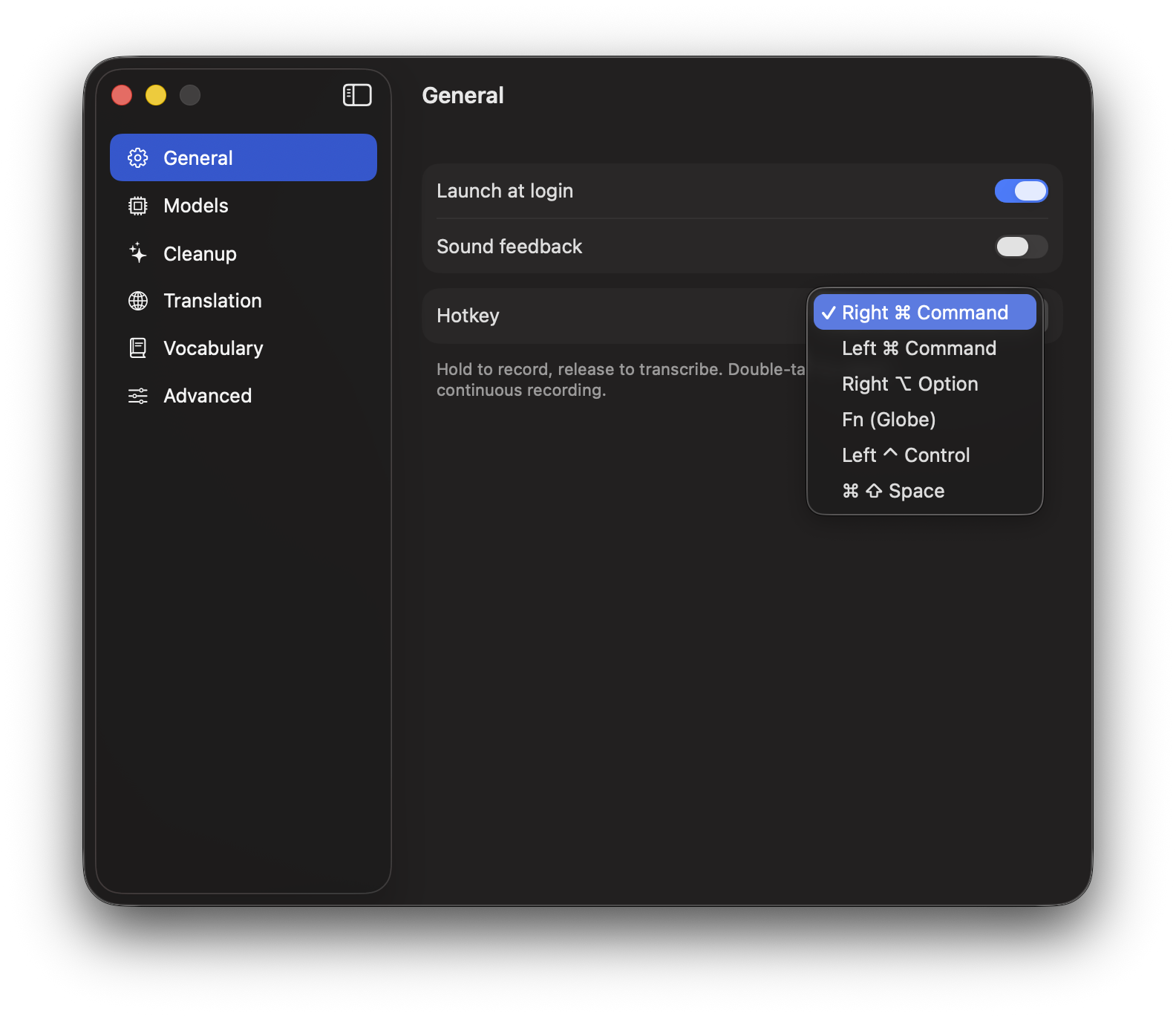










 Hold or double-tap
 Paste Last
 Parallel dictation
 6 hotkey presets
 Auto-mute media
 Fine-tuning
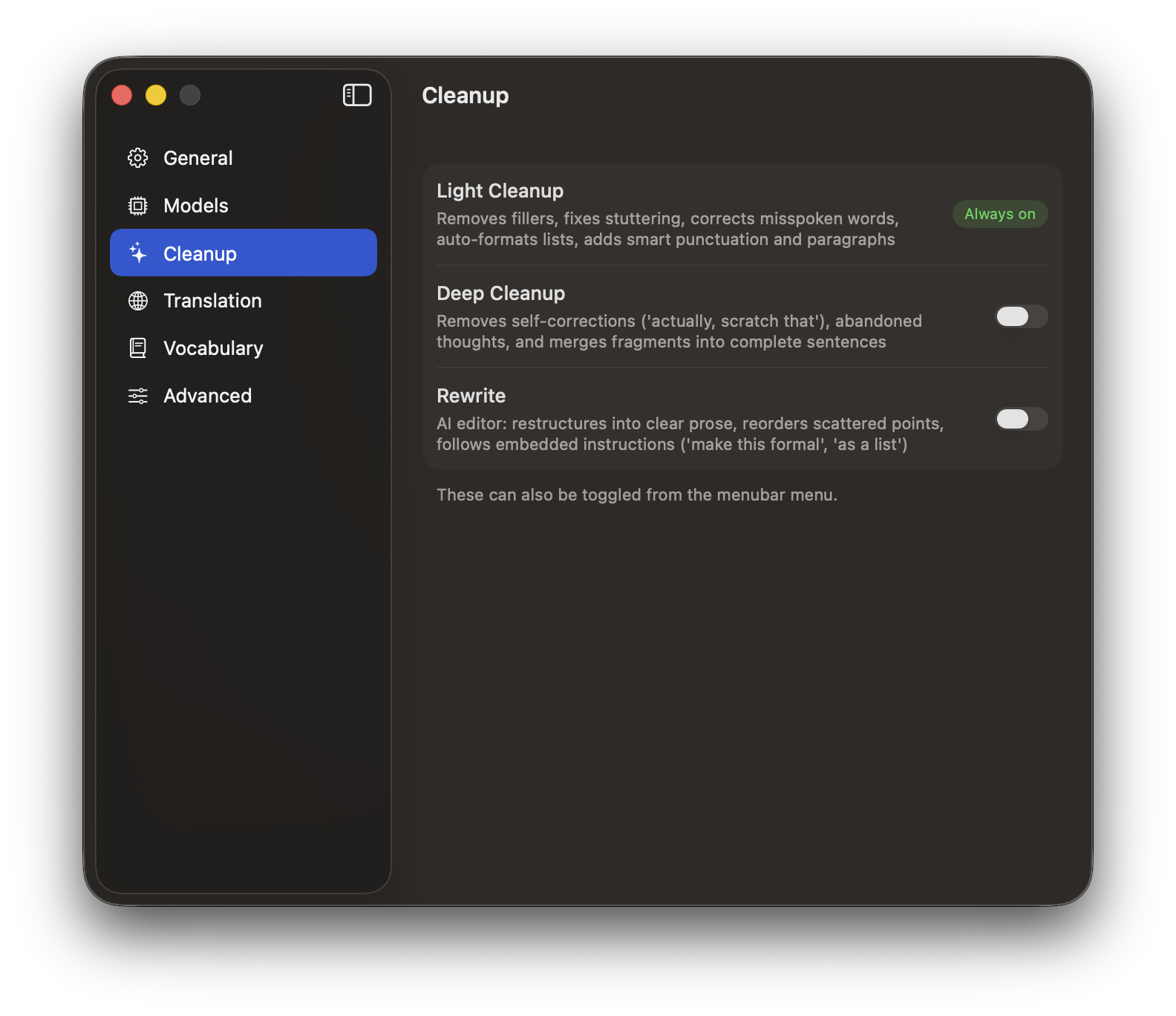
 Smart Cleanup
 Rewrite
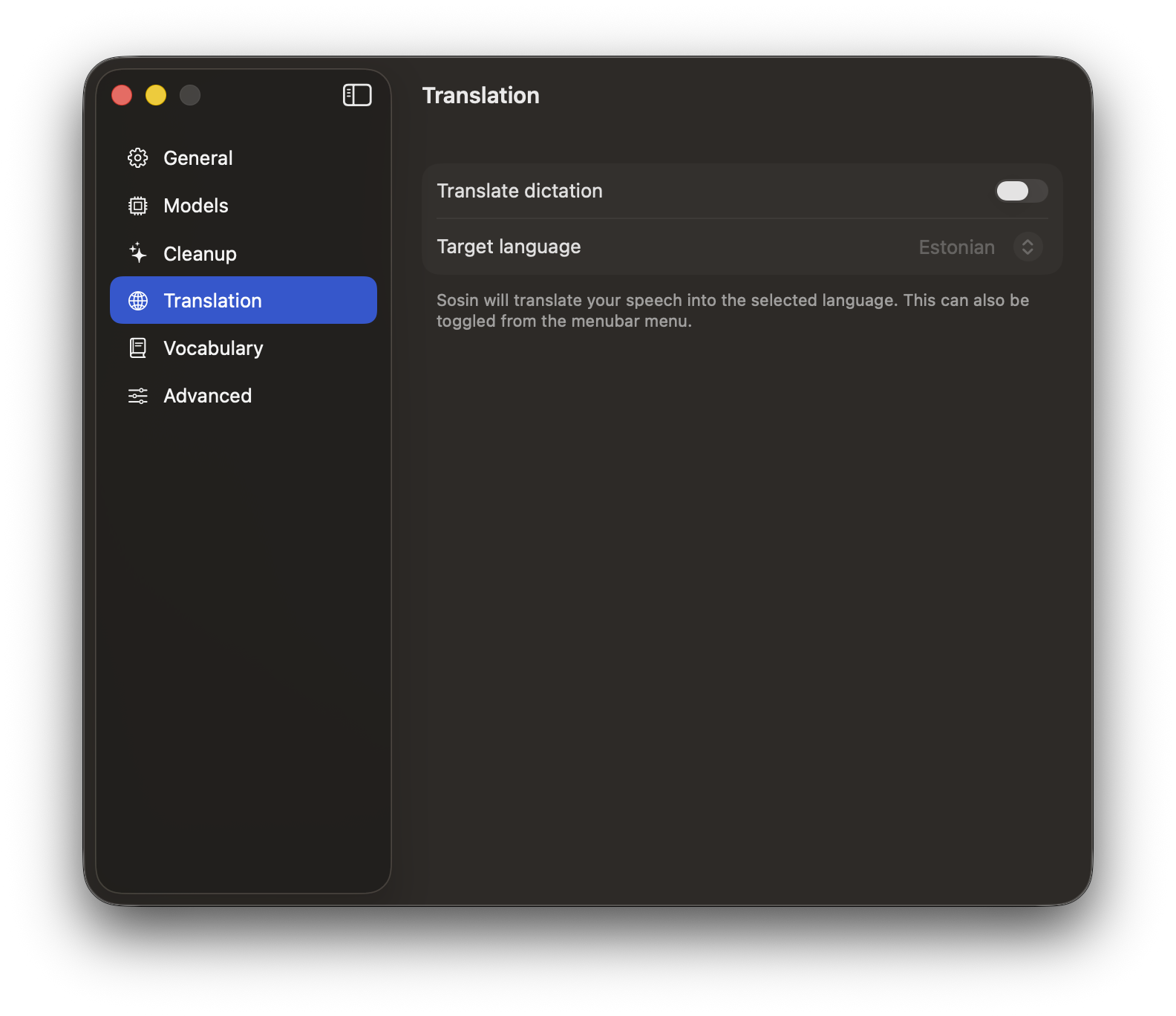
 Translation
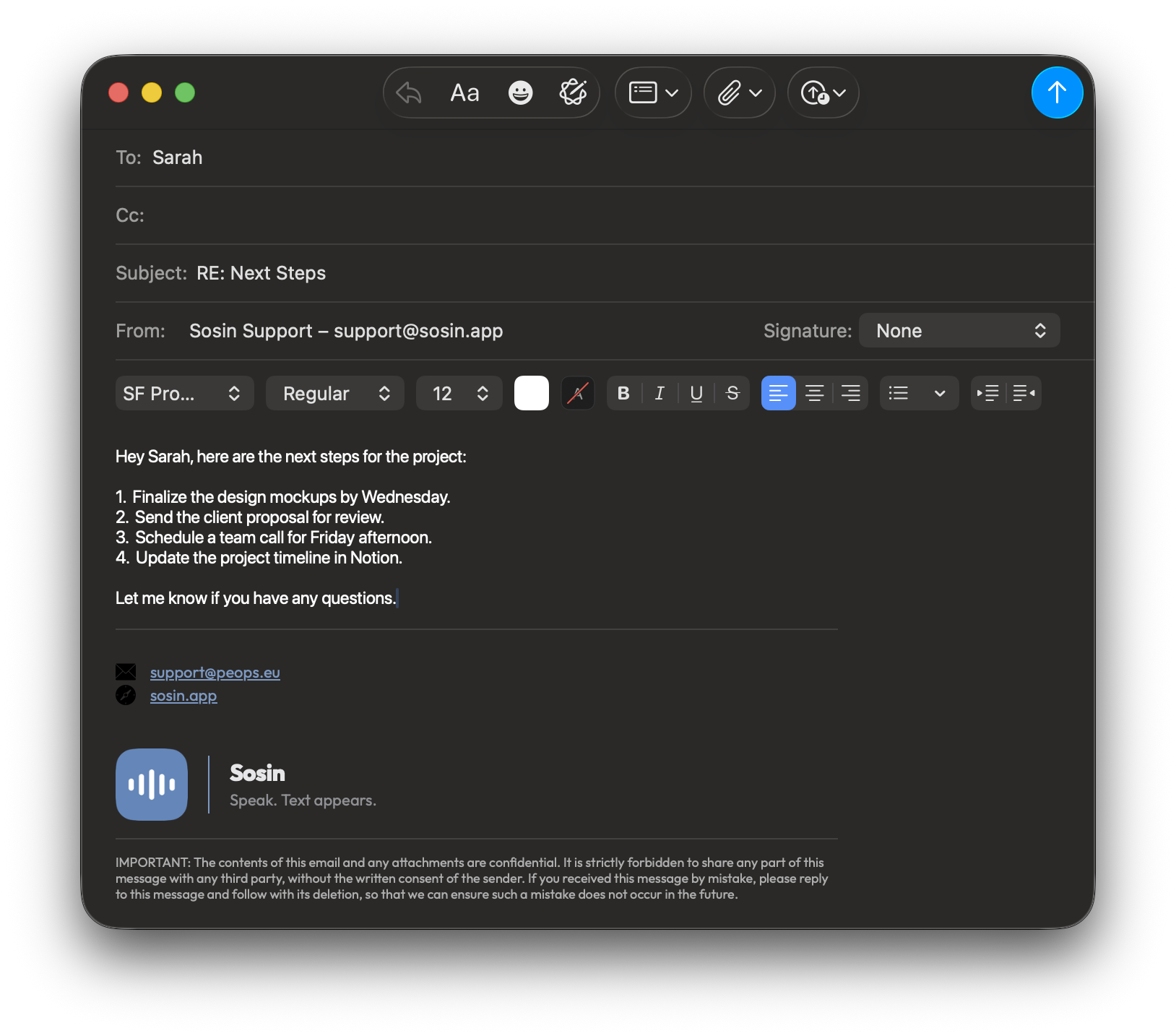
 Auto-formatting
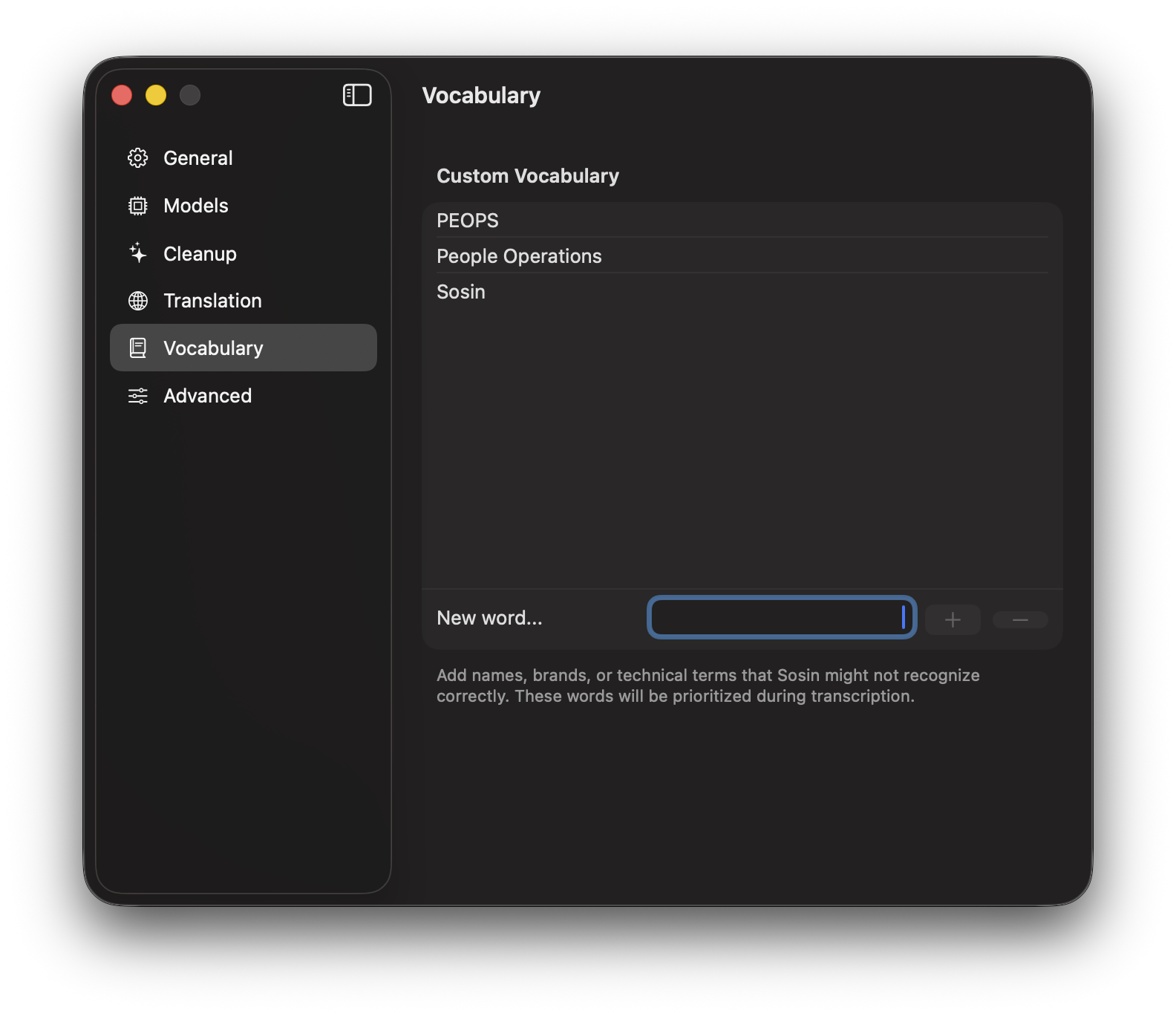
 Custom Vocabulary
 Local Models
 Gemma 4
  Cloud AI
 Bring Your Own Key
 Anonymized by design
 Keychain storage
 No audio storage
 Works in any app
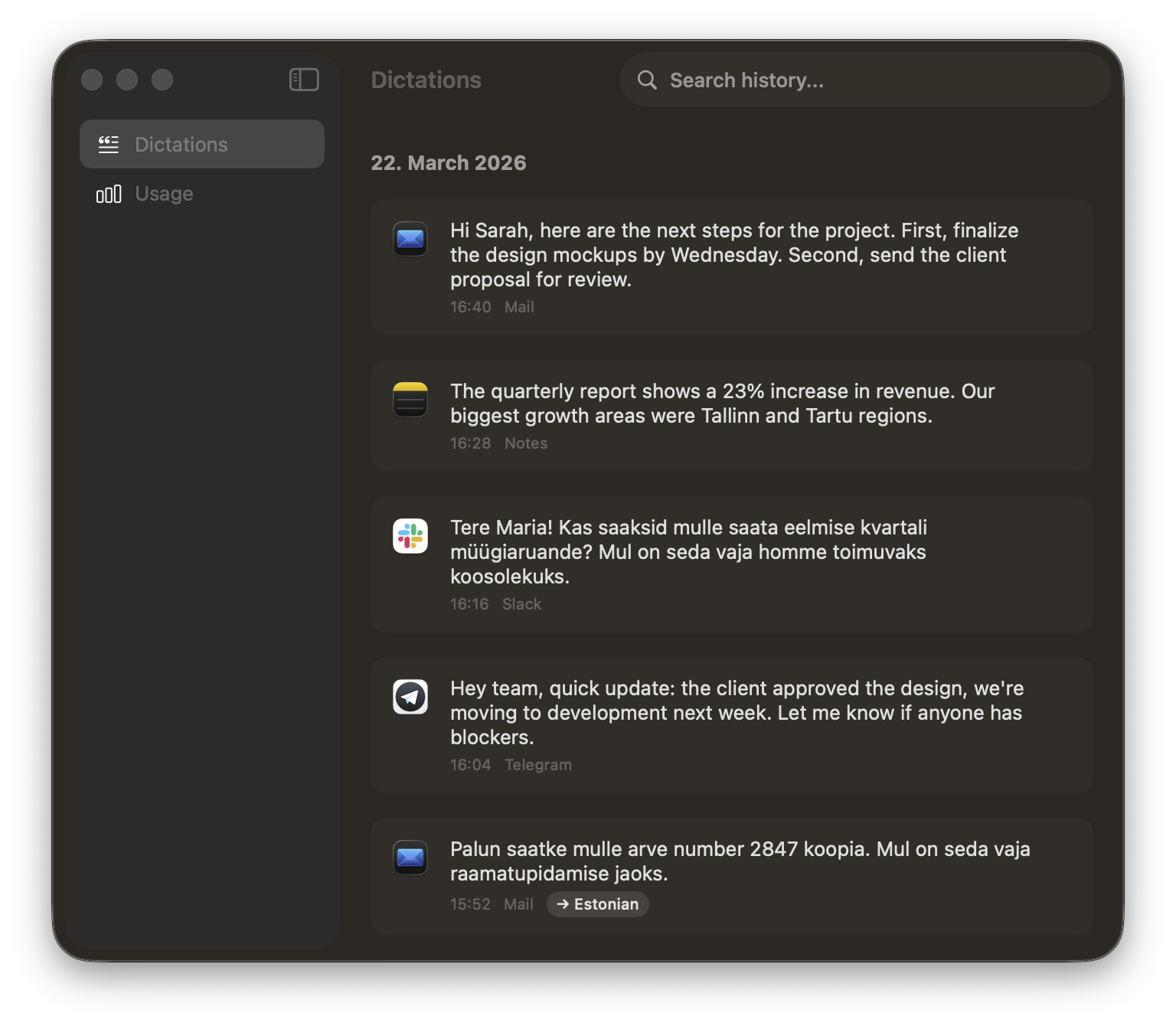
 History
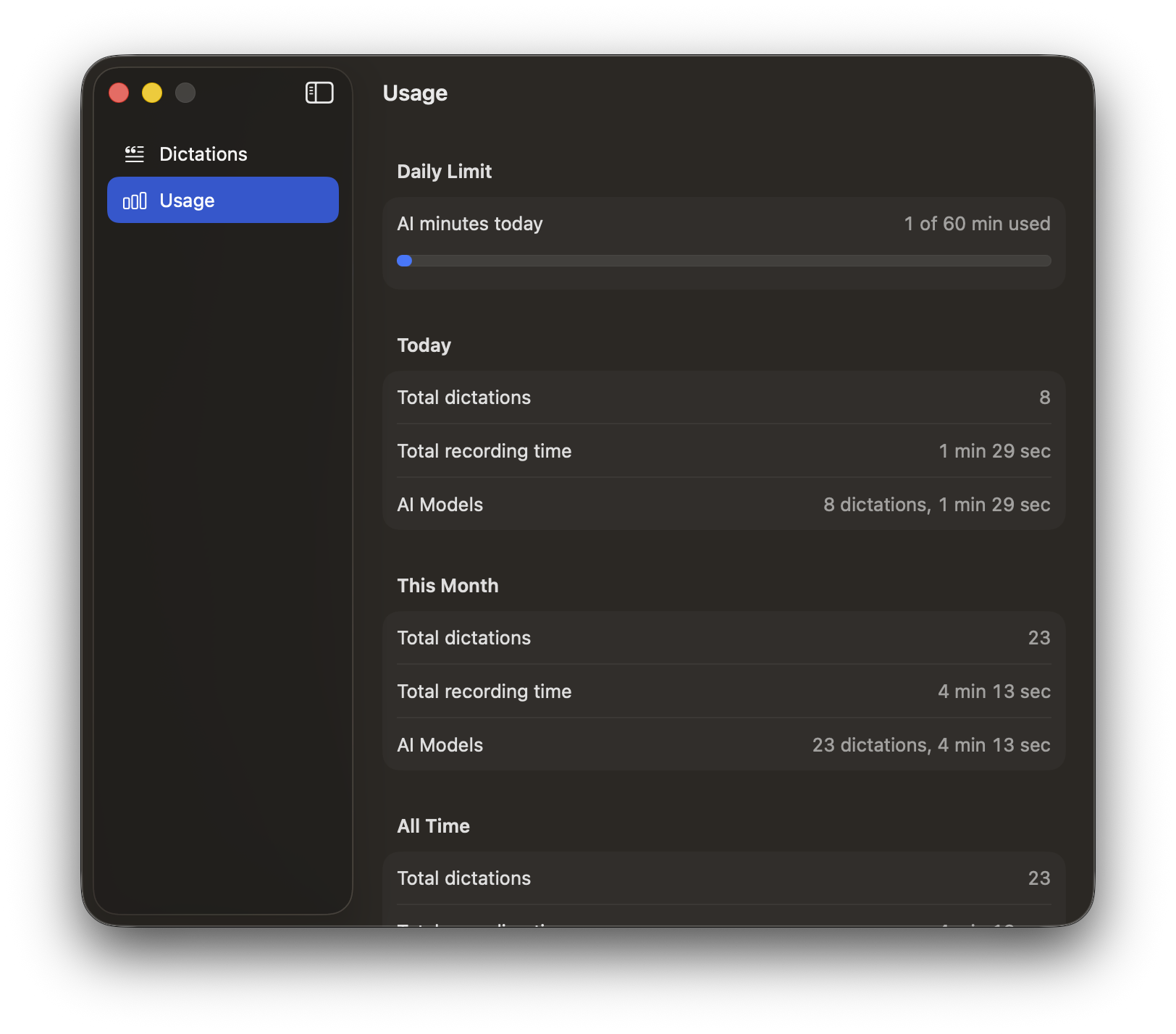
 Usage stats
 Dark mode
 Launch at login
 Auto-updates
 We never see your transcriptions
 We never link your data to your identity
 We never train AI on your words
 We never track your behavior
 We never sell or share your data
 Error reporting is your choice
 Minimal data, maximum function